Label
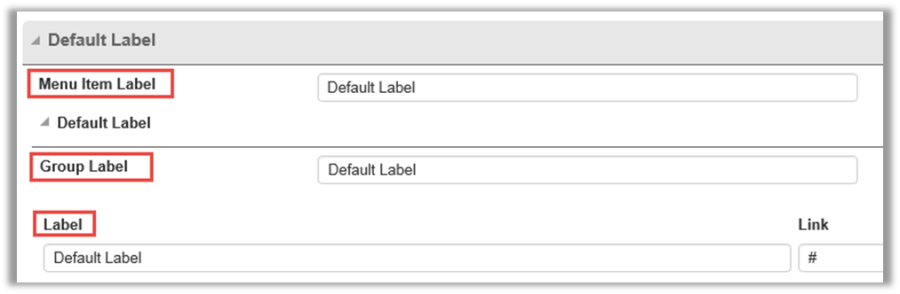
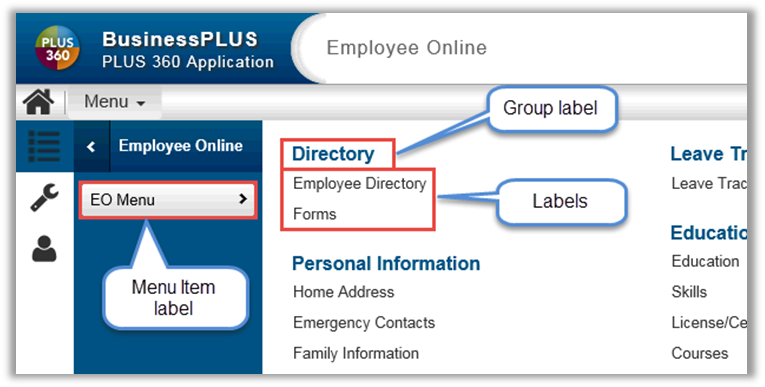
On the Menu Setup page, the user can define three types of menu items:
-
Menu Item Label
-
Group Label
-
Label
Column
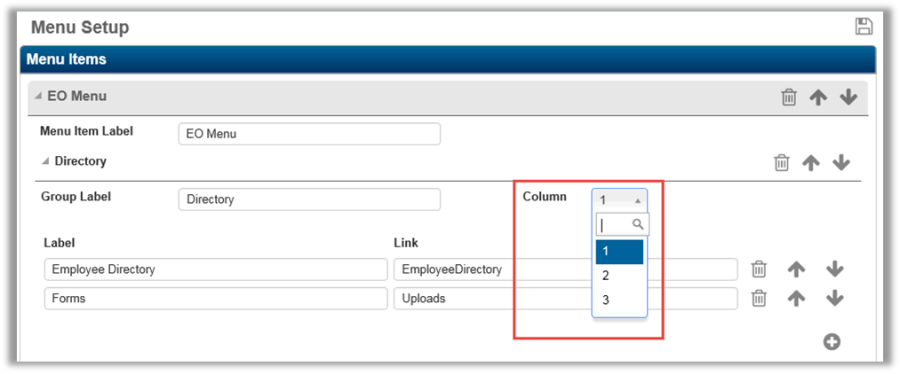
Group labels can be organized in up to three columns. Select the desired column number from the drop-down list.
Order
Use the up and down arrows to move grouped labels up or down within the column.
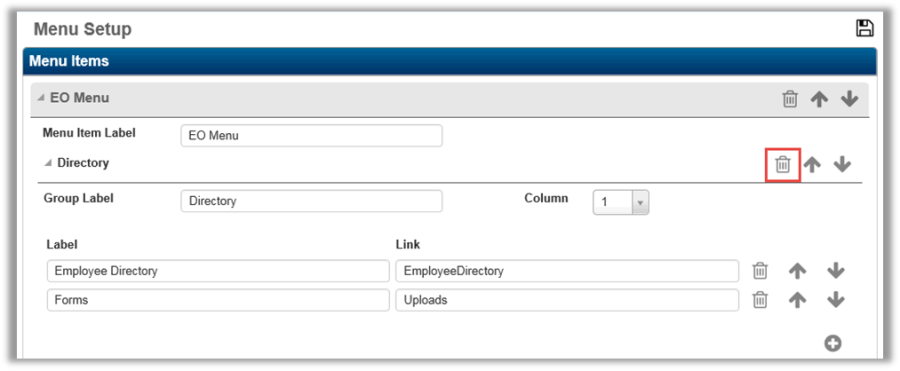
Delete
To remove a Menu Item label, Group label, or label, select the Delete (trash can) button.
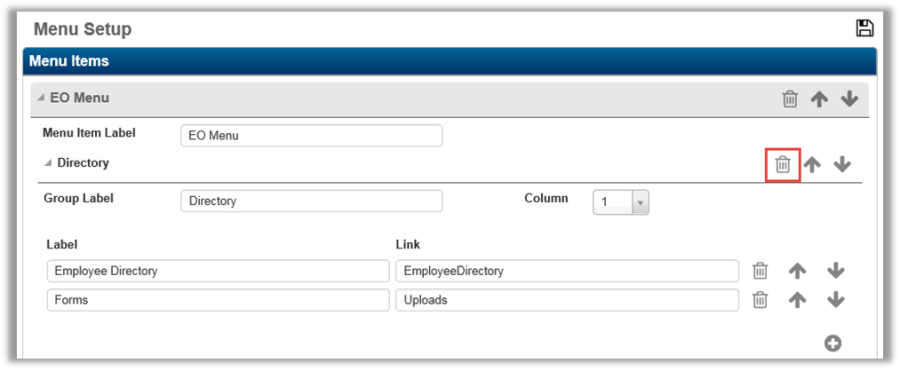
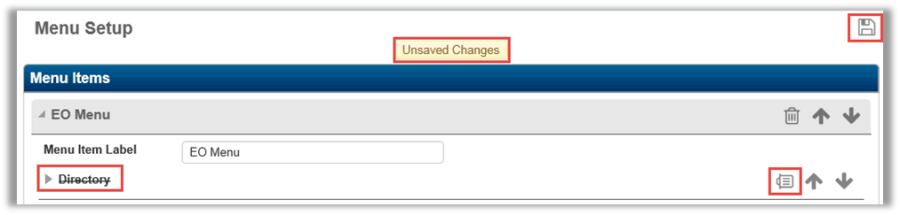
The button will flip to the side, the label name is crossed out, and the user is informed of unsaved changes to the page. To undo the changes, click the Delete (trash can) button again. To save the changes, select the Save button.
Link
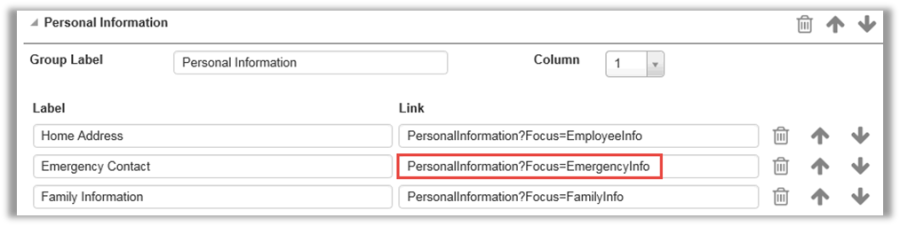
Individual labels can be linked to pages and cards. Use the Link field on the Menu Setup page to specify the link.
Focus
To link to a card within a page, enter "?Focus=" after the page name, followed by the card name.
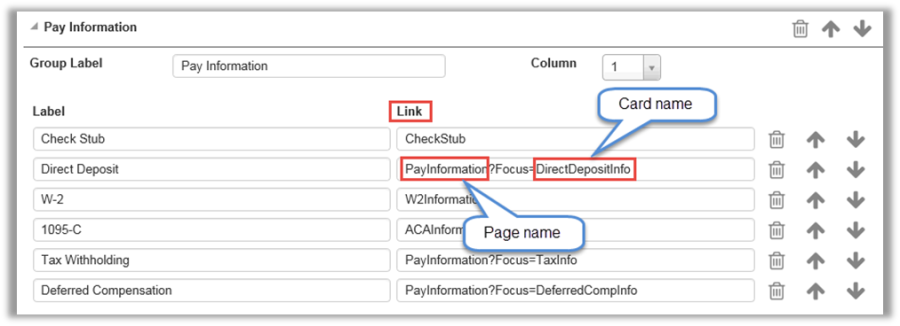
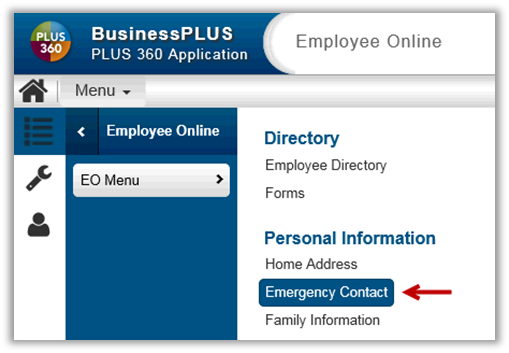
When using a card name in a Menu link, the page will open up with that specific card highlighted. For example, if the user selects Emergency Contact from the EO Menu, the Employee Information page will open with the Emergency Contact card expanded.
Target
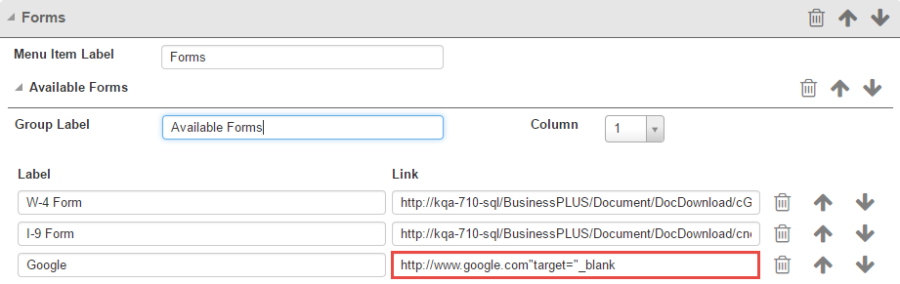
To open a link in a new window or tab, add the following syntax at the end of the menu link: "target="_blank
Example: http://www.google.com"target="_blank