
To manually load a new SPFM definition file into the database, the following steps need to be done:
Deleting old SPFM file from the database
-
Go into the SYSPUB screen and select the format file to be deleted.
-
Select the ‘trash can’ icon and then select Delete Record. You can also use the keyboard command of CTRL+D. A confirmation box will appear. Select Yes to confirm the delete.
Preparing to load the new SPFM file
-
The new SPFM file must be loaded into the app/driver directory on the app server.
-
To keep the old version on the app server, rename it prior to loading the new file.
Loading the New SPFM file into the Database
-
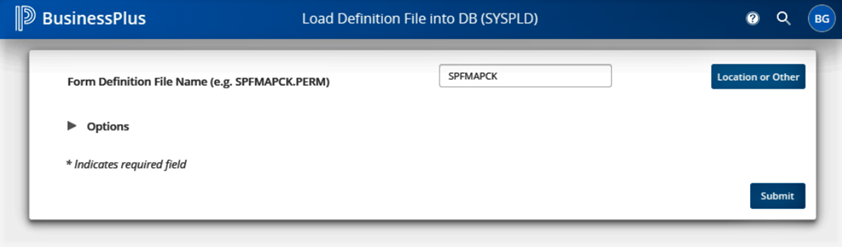
Run mask SYSPLD to load the new SPFM file.
-
You can either type in the new file name followed by “.driver.app” (example: SPFM99MZ.driver.app) or click on the ‘Location or Other’ icon and then find and select the new SPFM file then click on open.
-
Select Submit to launch the upload process.
Verify Upload of SPFM file
-
Go into the SYSPUB screen and verify that the new file is in the Entity list.