DRS Contribution and Deduction CDHs
Create a:
· deduction definition in PYUPDD for each plan, including Plan 0
· contribution definition in PYUPCC for each plan, including Plan 0
· adjustment deduction definition in PYUPDD for each plan
· adjustment contribution definition in PYUPCC for each plan.
Consider the following sample table. CDH numbers are just an example and can vary.
|
PLAN |
CNT |
PRIORITY |
DED |
PRIORITY |
MISC1 |
MISC2 |
MISC5 |
|
TRS0 |
1420 |
4001 |
2420 |
4000 |
RETI |
TRS0 |
|
|
TRS1 |
1421 |
4001 |
2421 |
4000 |
RETI |
TRS1 |
|
|
TRS2 |
1422 |
4001 |
2422 |
4000 |
RETI |
TRS2 |
|
|
TRS3 |
1423 |
4001 |
2423 |
4000 |
RETI |
TRS3 |
|
|
TRS0 ADJ |
1424 |
4002 |
2424 |
4002 |
RETI |
TRS0 |
ADJ |
|
TRS1 ADJ |
1425 |
4002 |
2425 |
4002 |
RETI |
TRS1 |
ADJ |
|
TRS2 ADJ |
1426 |
4002 |
2426 |
4002 |
RETI |
TRS2 |
ADJ |
|
TRS3 ADJ |
1427 |
4002 |
2427 |
4002 |
RETI |
TRS3 |
ADJ |
|
PERS0 |
1430 |
4001 |
2430 |
4000 |
RETI |
PRS0 |
|
|
PERS1 |
1431 |
4001 |
2431 |
4000 |
RETI |
PRS1 |
|
|
PERS1 ADJ |
1435 |
4002 |
2435 |
4002 |
RETI |
PRS1 |
ADJ |
|
SERS0 |
1440 |
4001 |
2440 |
4000 |
RETI |
SRS0 |
|
|
SERS2 |
1442 |
4001 |
2442 |
4000 |
RETI |
SRS2 |
|
|
SERS3 |
1443 |
4001 |
2443 |
4000 |
RETI |
SRS3 |
|
|
SERS2 ADJ |
1445 |
4002 |
2445 |
4002 |
RETI |
SRS3 |
ADJ |
|
SERS3 ADJ |
1446 |
4002 |
2446 |
4002 |
RETI |
SRS3 |
ADJ |
Priority: The deduction must have a priority before taxes (pretax) and must come before the contribution. Adjustments will be set up as appropriate to follow the regular CDHs.
MISC1: Update all DRS CDHs with “RETI.”
MISC2: Characters 1-3 are the first three characters of the system and character 4 is the plan. The misc. code used is client-specific. However, it cannot be code 1 or 5 (2 is suggested). This is defined on common code TDHR/RETWA1, Associated Value 1.
MISC5: Update all DRS Adjustment CDHs with “ADJ.” Note that all corrections on a deduction or contribution should happen on an adjustment CDH. Additive amounts CANNOT be used in CDH assignments.
Relate To 8: Not required. Suggest “DRS” for easy query on screen.
Load DRS Calc Code
Load DRS calc code for each DRS contribution and DRS deduction (not adjustment CDHs).
DRS Contribution
<<**************DRS CONTRIBUTION****************>>
<< DATE VER CHANGE LOG >>
<<12/9/2009 <1.0> Load Standard Calc Code >>
<<**********************************************>>
<< DRS contribution reads MSCX.NUM1 from DRS
deduction. >>
<<**********************************************>>
CVAR9 := "EBUG"
CNTX.AMT := MSCX.NUM1
IF CVAR9 = "DEBUG"
WARN("FROM DED:",MSCX.NUM1)
WARN("DRS CNT :",CNTX.AMT)
ENDIF
DRS Deduction
<<**************DRS DEDUCTION ****************>>
<< DATE VER CHANGE LOG >>
<<5/1/2009 <1.0> Load Standard Calc Code >>
<<**********************************************>>
<< DRS deduction reads the employee's associated
detail which is set during the PYRERRWA02
extract process.
Sets MSCX.NUM1 and sent to the DRS contribution
for the employer portion.
Employee Setup Required:
-
PYRERRWA01 - DRS Membership Screen with
active enrollment dates and extract date
Processing Steps Required for calculation:
-
PYPAFC - creates the SYSTM timecard batch.
-
PYRERRWA02 Extract, sets the assoc detail
-
PYPAFC - reads the associated detail and
calculates the ded and cnt.
>>
<<**********************************************>>
CVAR9 := "EBUG"
CVAR3 := " "
CVAR2 := " "
CVAR9 := " EBUG"
CVAR0 := "DRS"
NVAR1 := PERM.CC
CVAR1 := NVAR1
CVAR1 := CVAR1[8,7]
CVAR0[4,7] := CVAR1
NVAR1 := 0
IF CVAR9 = "DEBUG"
WARN("ASSOC CODE",CVAR0)
ENDIF
DO
IF MSCX.STATUS <> "FAILED"
IF EADT.CD = CVAR0
CVAR2 := EADT.DESC
CVAR3 := CVAR2 [20,1]
CVAR3[2,10] := EADT.DESC2
NVAR1 := CVAR3
MSCX.NUM1 := CVAR2[5,10]
MSCX.STATUS := "FAILED"
ENDIF
ENDIF
UNTIL MSCX.STATUS = "FAILED"
IF CVAR9 = "DEBUG"
WARN("DED AMT",nvar1)
warn ("msnum", mscx.num3)
ENDIF
IF CVAR2 > " "
DEDX.AMT := NVAR1
ENDIF
Create/Update Hour Codes and Reportable Direct Contributions
Salary
Earnings
Contract CDHs (Deferred Pay)
|
|
|
CDH# |
PRI |
HB15 |
HB16 |
HB19 |
PB7 |
PB14 |
PB19 |
SW01 |
SW02 |
SW17 |
SW19 |
SW24 |
SW25 |
SW26 |
SW27 |
SW28 |
|
CONTRACT PAID |
Reportable Pay |
3001 |
2500 |
|
+ |
+ |
+ |
|
+ |
O |
D |
A |
+ |
|
Y |
P |
P |
R |
|
CONTRACT EARNED |
Reportable Hours |
3005 |
2000 |
+ |
+ |
+ |
+ |
+ |
+ |
O |
R |
A |
|
|
Y |
E |
E |
|
|
CONTRACT EARNED NO HOURS |
Not reportable hours |
3004 |
2000 |
+ |
|
+ |
+ |
+ |
+ |
O |
R |
A |
|
|
Y |
E |
E |
|
|
CONTRACT EARNED ADJ |
|
3006 |
2500 |
|
+ |
|
+ |
+ |
+ |
O |
R |
A |
|
|
Y |
E |
E |
|
|
RETRO PAY |
Reportable Pay |
3010 |
1500 |
|
+ |
|
+ |
|
+ |
O |
D |
A |
|
|
N |
E |
R |
|
|
RETRO EARNED |
Reportable Hours |
3011 |
1000 |
+ |
+ |
|
|
+ |
+ |
O |
R |
A |
|
|
|
|
Q |
|
Non-Contract CDHs (Non-Deferred Pay)
|
|
|
CDH# |
PRI |
HB15 |
HB16 |
HB19 |
PB7 |
PB14 |
PB19 |
SW01 |
SW02 |
SW17 |
SW19 |
SW24 |
SW25 |
SW26 |
SW27 |
SW28 |
|
ADDITIONAL HOURS |
|
3380 |
1000 |
|
+ |
|
+ |
|
|
O |
R |
A |
|
|
N |
E |
P |
|
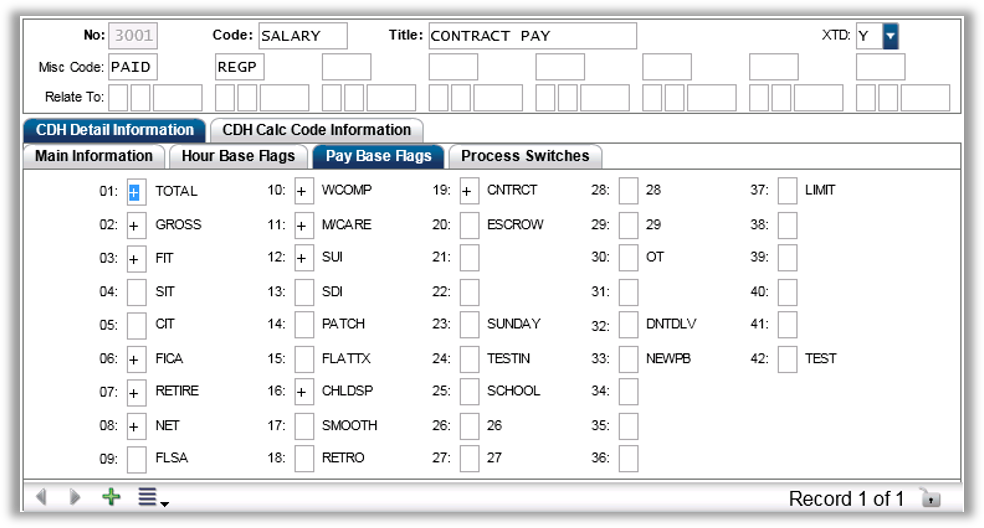
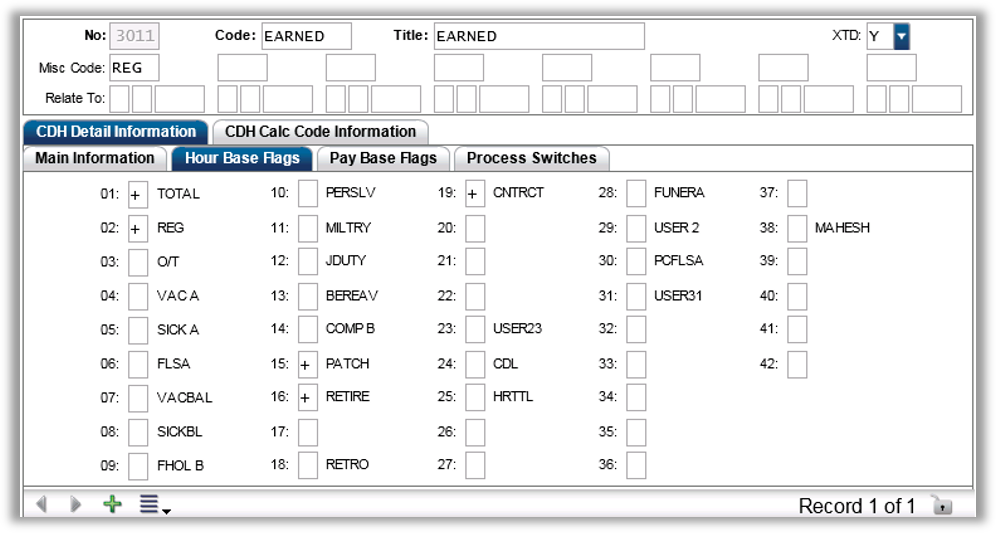
Paybase 7 (Retirement): Enter + for all hour codes that are reportable to DRS (earned or paid).
Hour Base 16 (Retirement): Enter + for all hour codes that are reportable to DRS (earned or paid).
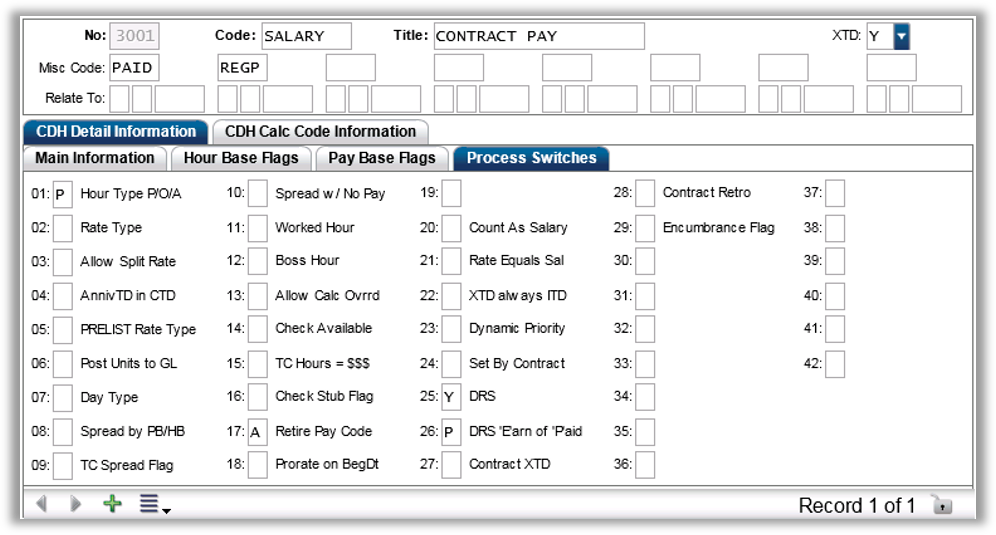
Process Switch 17 (DRS Status Code): For regular earnings, this will typically be “A”. Please see the DRS Manual (rules issued by DRS) for cash out and other status codes.
Process Switch 25 Hour Code (DRS type): “Y” if a deferrable earned or paid hour (typically contractual hours such as contract paid and contract earned). Blank or “N” if it is not a deferrable hour. Non-deferrable hours are hours that must be reported to DRS the same month in which they are earned (typically non-contractual hours such as overtime).
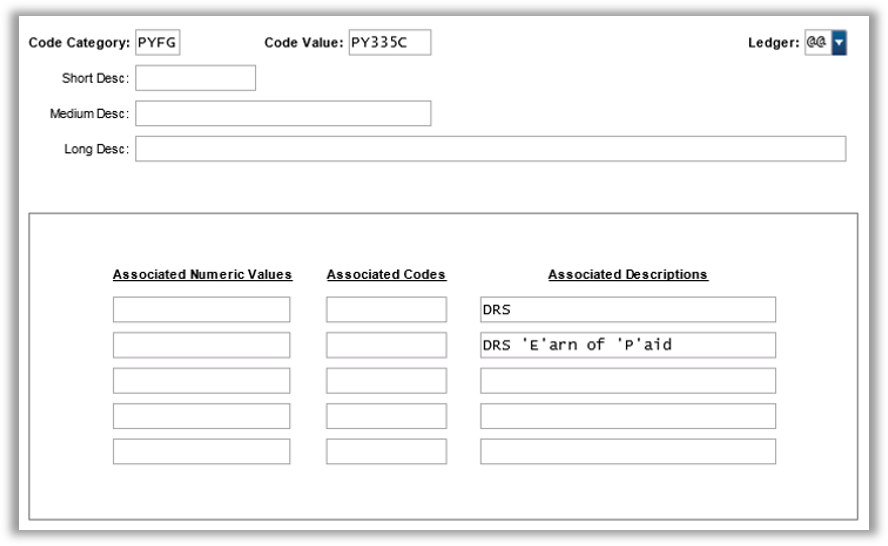
Process Switch 25 Contribution/Deduction: “Y” to signify this is a retirement type contribution or deduction. A “Y” indicates that the contribution or deduction should be included in retirement as income even if it does not touch the retirement pay base.
Process Switch 26 (“E”arned or “P”aid): Reportable Earnings or Paid Dollars. You can put an “E” or “P” respectively and any dollars associated with this hour will only appear under that column on the DRS Extract (PYRERRWA02). Any other code will be interpreted as if it should be counted under both Earned and Paid columns. The use of this code is intended for hours that may affect paid only and not earnings or earnings and not paid.
Plan Definitions
Mask PYRERRWA07.
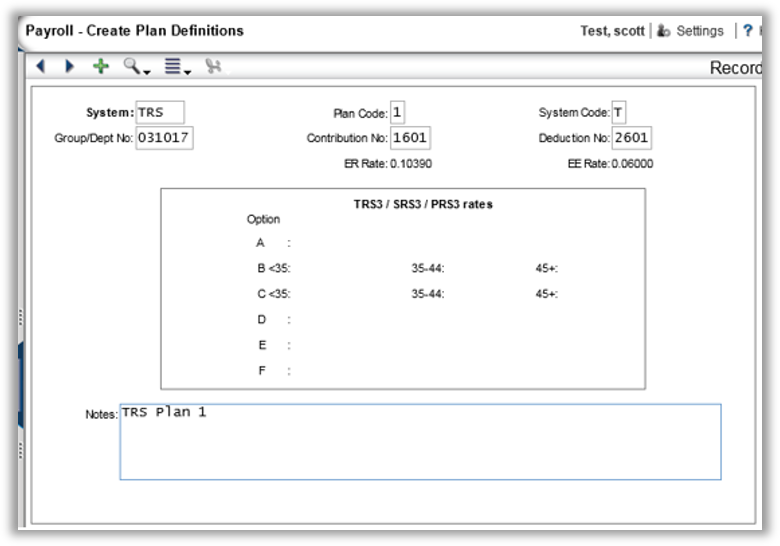
System: Enter the System. It should match the first three characters of the Misc code on the CDH definition (e.g., PRS, SRS, TRS, LEF).
Plan: Enter the Plan. It should match the fourth character of the Misc Code on the CDH definition (e.g., 1,2,3).
System Code: Enter the system code. This should be the first character of the system (TRS=T, PERS=P), EXCEPT enter “E” for SERS.
Group Number: Enter the Group/Department number specified by DRS.
Payroll CNT No: Payroll contribution number (1xxx) as defined for this plan in the Contribution Definitions (PYUPCC).
Payroll DED No: Payroll deduction number (2xxx) as defined for this plan in the Deduction Definition (PYUPDD).
Note: The rates effective “today” will display once the Rate Tables are built in next step.
Rate Tables
A rate table must be set up for each plan, with effective dates as far back as reportable compensation is reported. For new clients, this may will be as far back as the last fiscal year depending on how many outstanding timecards are processed.
The rate tables, including historical rates, are available on the DRS website: http://www.drs.wa.gov/employer/EmployerHandbook/pdf/CombinedList.pdf
Plans 1 and 2 are set up in PYRERRWA08RT.
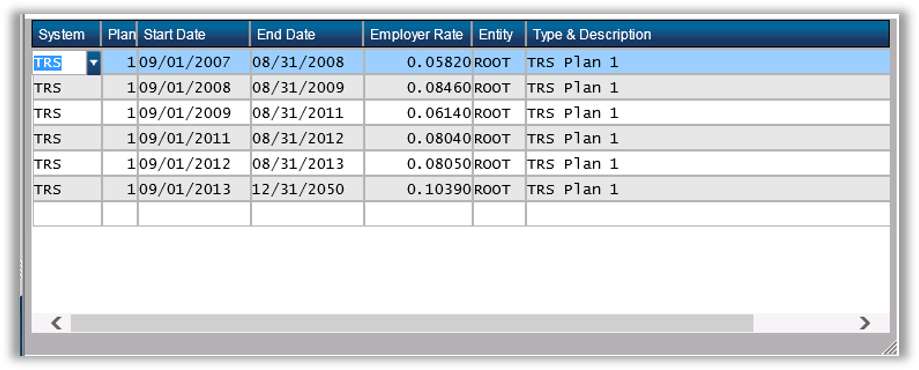
Plans 3 are set up in PYRERRWA08R3. Create a new record for each plan, option, and effective dates.
Example
SERS plan 3 (plan “E”) and options A, B, C, D, E, F.
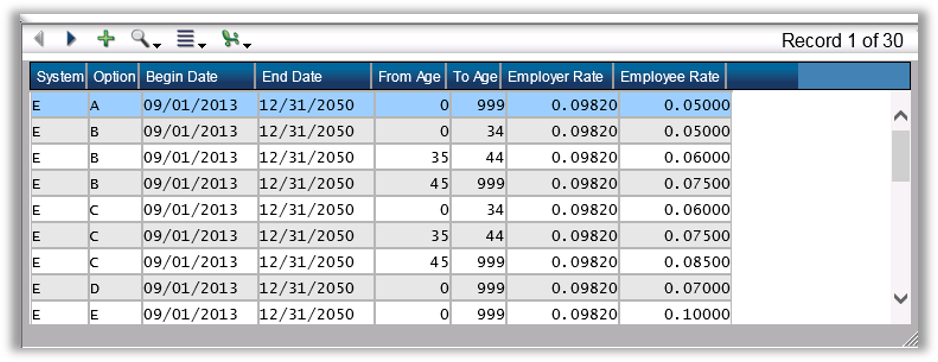
TRS/SRS/PRS: Enter the system in which this rate applies. Either “T” (TRS), “E” (SRS), “P” (PRS), “L” (LEOFF).
Option: Enter the TRS/SRS/PRS option (A through F) for which this set of age groups and rates apply. Valid options are defined in the DRS Employer Handbook.
Begin/End: Enter the date range for this set of age groups and rates.
Age From/To: Enter the age range for the given rate. Enter 0 for the lowest age and 999 for the highest age. 465
Employer Rate: Enter the Employer rate that applies for the given option and date range.
Employee Rate: Enter the Employee rate that applies for the given option and date range.
Common Codes
TDHR/RETWA
Master DRS setup.
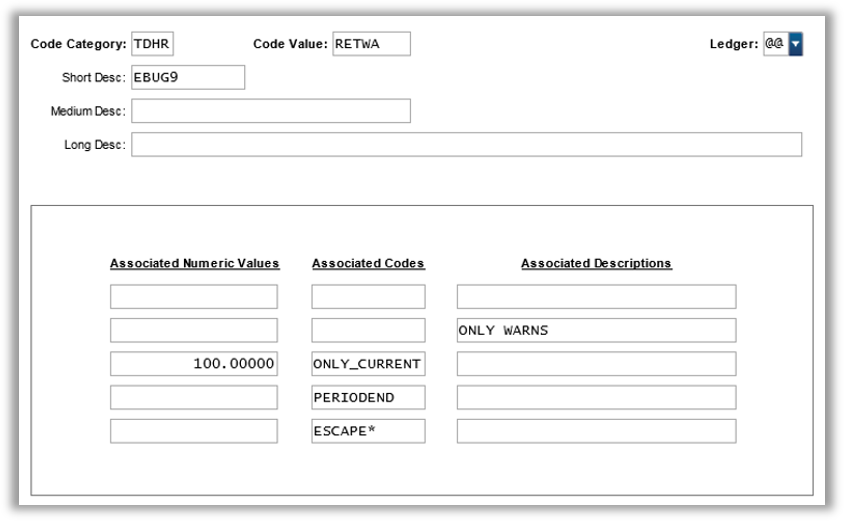
Short Description
Sets debug on and the level of debug that is desired. Entered “DEBUG#” where the “#” is a number (i.e., 1).
Associated Numeric Values
1: N/A
2: N/A
3: Sets the employee processed interval. The number entered here will cause a message to be displayed after that many employees have been processed.
4: N/A
5: Sets the rounding limit between the calculated deduction and contribution and the actual contribution and deduction in payroll. This functionality is currently not being used.
Associated Codes
1: N/A
2: N/A
3: If set to “ONLY_CURRENT,” it will cause the system to only display error messages for the current period; otherwise, messages for all periods will be displayed.
4: If set to “PERIODEND,” it will cause the system to use the period ending date instead of the check date of the period to determine the reporting period of payments.
5: If set to “ESCAPE,” DRS reports will print with the standard escape sequences. This will help during formatting routines.
Associated Descriptions
1: N/A
2: “ONLY WARNS” – Tells the retirewa (PYRERRWA01) screen to only give warnings when an employee has passed 90 days. The warning can be ignored, and the 90-day rule is not enforced. Without this setting, after 90 days, if an option is not selected, the screen will automatically switch the option to “A.”
3-5: N/A
TDHR/RETWA1
DRS extract setup.
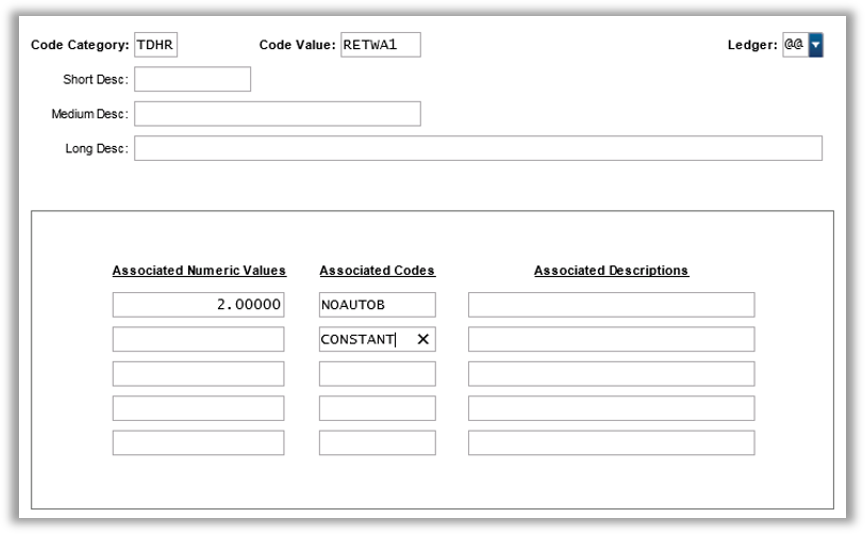
Short/Medium/Long Descriptions
DRS setup
Associated Numeric Values
1: This number identifies the CDH Definition miscellaneous field that signifies where the retirement plan is flagged. For instance, a 2.00000 in this value would mean that PYUPCC/PYUPDD Misc Code 2 would store the values that correspond to the plans (i.e., TRS2).
2: Wage Limit - A warning message will be displayed when an employee’s reported wage exceeds this value. This is not mandated by DRS. The limit is intended for error checking.
3: Hour Limit - A warning message will be displayed when an employee’s reported hours exceed this value. This is not mandated by DRS. The limit is intended for error checking.
4: Hours in Day - A default number of hours per day. This value is used if the Days From Field is set to “CONSTANT” and is used to determine the number of days worked. It takes the total hours worked and divides by this value.
5: Employee Batch Size: The number of employees to process at once. This is used to control how much information is loaded into memory at once. The default is 500 employees, however if you have memory limitations or an extensive amount of history and timecards that number may need to be reduced.
Associated Codes
2: “NOAUTOB” in this field means that “B” codes will not automatically be created; otherwise “B” will be generated. A “B” is automatically generated if there is nothing to report in the current month for a retirement eligible employee.
4: Days From - This value determines how the number of days will be calculated. “CONSTANT” means that the number of days will be derived from the constant value in the Hours in Day field. “PCNTABLE” means the number of days is determined from the PCN table using the base hours.
TDHR/RETWAIMG
DRS file image setup.
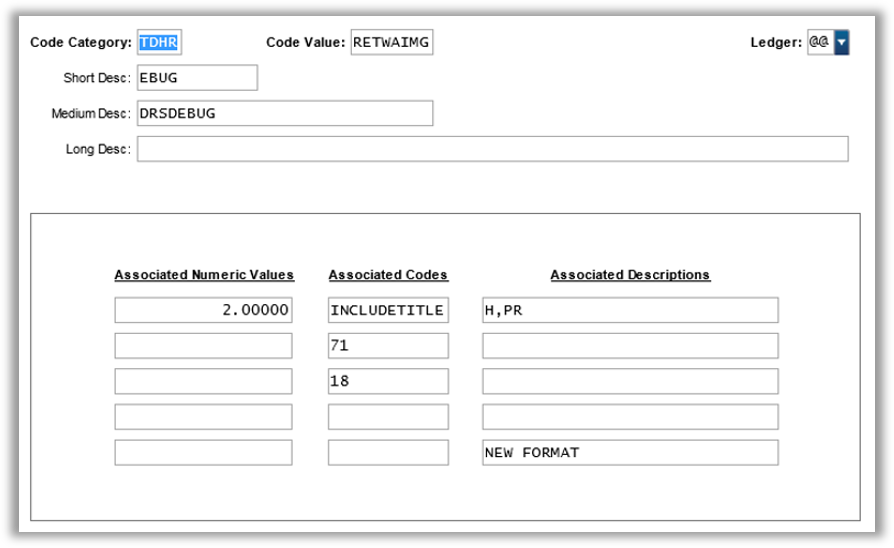
Short Description
Turns “DEBUG” on. For PowerSchool use only.
Medium Description
Debug File Name (the name of the file that stores the Debug information).
Associated Numeric Values
1: Enter the number of reports submitted to DRS per DRS filing period. If you submit two reports per DRS period, enter a number two in this field (e.g., monthly = 1).
Associated Codes
1: “INCLUDETITLE.” If this value is set, the salutation stored in payroll will be included as part of the employee's name and will be stored as their title.
2: Default TRS Position Type field. This is the value of the default type field for TRS employees. If the type field is not populated on the retirewa screen (PYRERRWA01) and the employee does not have a corresponding PM pay assignment, the type field will use this default (e.g., 71).
3: Default PERS Position Type field. This is the value of the default type field for PRS employees. If the type field is not populated on the retirewa screen (PYRERRWA01) and the employee does not have a corresponding PM pay assignment, the type field will use this default (e.g., 18).467
Associated Descriptions
1: Enter the phone codes that are considered “work phones.” Phone codes that match the ones specified here will have a “W” on the M record. All others will be “H” for Home. Comma-separate list.
5: Enter “NEW FORMAT” here to get the new ERA format for the file. If anything else is present, the classic file format is produced.
TDHR/RETWAPYA
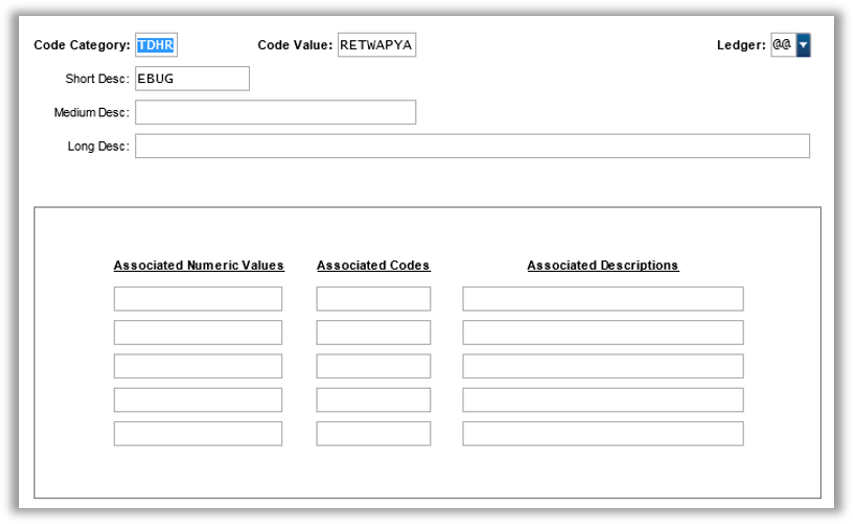
Short Description
Turns “DEBUG” on. For PowerSchool use only.
Associated Codes
3: “PYPERIOD.” Confines the reporting period to the payroll period entered instead of the DRS reporting month.
4: “PERIODEND” allows history lookup of paid records to be by period ending date instead of check date. This setting overrides the setting in TDHR/RETWA which is a system-wide switch. “NO LOOKUP” allows the system to use the values calculated by the extract for deduction and contribution regardless of what has been done in history.
PYFG/PY335C