
Introduction
CDD will support Python for all new reports starting from BP_26.3.0.0.
All existing reports that use VBScript will continue to work as they are, with no changes required.
It is strongly recommended that you try Python Reports in Test environment before pushing to production. Please refer Best Practices Section.
CDD would use Python as the macro language for all new reports. If you’d like a quick Python refresher, see Google’s Python class introduction: https://developers.google.com/edu/python/introduction
Active Macro Language (Python)
CDD uses Python (Active Macro) language for creating and editing macros. When a report is created, the Macros tab is populated with a script that is divided into sections:
-
Declaration
-
The first section is used to place all global variables. Global variables, like User Defined Variables in a report, can be accessed from any other function. The global variables section corresponds to the Declarations macro in the standard macro language.
-
Initialize
-
The next section is the sub for the pseudo-region called Initialize. This function is called first before any other work is done in the report. The function is only called once and corresponds to the Init macro in the standard CD macro language. Notice the comment in this section reminding the user where to put their statements that belong to this function.
-
Regions
-
Each of the other sections in the script correspond to regions of the report. As new regions are added to the report, the def (Active Macro function) for that region is added at the end of the script. When you select a region from the list of regions at the top of the macro editor, the def is found, highlighted, and scrolled into view.
# **********    Begin Variable Declarations    **********
# Global variables :
# **********    End Variable Declarations      **********
def Initialize():
    # TODO: Write macro for this function
    pass
def PageHeading():
    # TODO: Write macro for this function
    pass
def Detail():
    # TODO: Write macro for this function
    pass
def OnEachRow():
    # TODO: Write macro for this function
    pass
def PageFooter():
    # TODO: Write macro for this function
    pass
Global Variables
All global variables should be defined between the Begin Variable Declarations and End Variable Declarations comments.
Example:
# **********    Begin Variable Declarations    **********
# Global variables :
reportTotal = 0         # numeric global
employeeName = ""       # string global
myScriptlet = None      # object/global scriptlet reference
# **********    End Variable Declarations      **********
These variables are now global to this macro script and can be used in any function.
To access/modify a global variable from inside a function, you must declare it as global inside that function. This tells Python that you are referring to the variable defined at the top level, not creating a new local variable.
def Initialize():
    global reportTotal, employeeName, myScriptlet
    reportTotal = 0
    employeeName = "Unknown"
    # Example: creating a scriptlet object and storing it in a global
    myScriptlet = Report.CreateScriptObject("MyScriptlet")
Key points:
-
Declare the variable once in the global section.
-
Use
global varNameinside any function that needs to assign a new value to that variable.
Scriptlets
Scriptlets are snippets of code that are stored in the database and used within the reports. One of the primary motivations for using scriptlets is to reduce the need to rewrite the same macro code in multiple reports. Having the macros in one location simplifies the process of making fixes to the code or adding functionality. In addition, a scriptlet can hide the details of the script from the report writer, making the report writing process easier.
Scriptlets are created using the ActiveX Script Editor program that ships with CDD. The ActiveX Script Editor provides a mechanism to edit the scripts; however, it is necessary to perform most testing while running the reports.
Once a scriptlet has been entered into the editor:
-
Choose Compile from the Script menu to check the syntax.
-
When the scriptlet is complete, choose Save from the File menu to insert it into the database.
To access a scriptlet from the macros of a report:
-
Select View > Report Properties > Script Reference tab from the main menu.
-
Check the box next to the desired scriptlet and click OK.
-
The scriptlet can now be selected from the References drop-down in the Macros window.
Note: The scriptlet cannot be edited from CDD; it can only be viewed.
CreateScriptObject
To call the methods in a scriptlet, it is necessary to first create an instance of the scriptlet using the CreateScriptObject function. Scriplet Initialization should happen only once and it is recommended that its done at the Initialize() method.
Python usage
Scriptlet function:
def CalculateUserPay(hours: int, rate: int) -> int:
    return hours * rate
Using it in a report macro:
# **********    Begin Variable Declarations    **********
# Global variables :
myScriptlet = None
# **********    End Variable Declarations      **********
def Initialize():
    global myScriptlet
    myScriptlet = Report.CreateScriptObject("MyScriptlet")
def Detail():
    Report.Computed = myScriptlet.CalculateUserPay(10, 20)
    # The computed value will be available in the report designer.
Once the scriptlet reference is returned by the call to CreateScriptObject, you can access member functions and variables on that object.
Scriptlet references are destroyed when one of three events occur:
-
The report ends.
-
The variable holding the reference goes out of scope.
-
The variable holding the reference is set to
Nothing(or removed/reset in Python).
Accessing Report / System Properties from Scriplet
When you need to access report or system properties from within a scriptlet, you must prepend those members with the ScriptEngine object. This ensures the scriptlet is bound to the same execution context as the report.
# Check whether the report is running in server/web mode
if ScriptEngine.IsServerMode:
    # server-specific logic
    ScriptEngine.DebugTrace("Running in server mode")
else:
    ScriptEngine.DebugTrace("Running in desktop mode")
Accessing the Active Macros of a Report’s Query
Methods and data members declared in the macros of a report’s information category can be accessed at runtime by prefixing the function with the reserved word Query. This is useful for writing functions that reside at the category level and can be used across multiple reports. It allows the category designer to write macros that make sense for the information category.
Example:
Suppose an information category has the following macro:
def GetCityStateCode() -> str:
    return f"{HR_EMPMSTR.CITY}, {HR_EMPMSTR.STATE} {HR_EMPMSTR.ZIP}"
A report based upon this information category could call the function GetCityStateCode by using the following syntax:
def Detail():
    Report.localCSZ = Query.GetCityStateCode()
For each execution of the Detail() macro line Report.localCSZ = Query.GetCityStateCode(), the report-level user field localCSZ is populated at runtime with the formatted CSZ (City, State, ZIP) string returned by the information category macro GetCityStateCode(). This value is computed per record/line item processed.
Introducing the Three Core Objects in Python Macros
When working with Python-based reports in CDD, you will frequently interact with three core objects:
-
Report - represents the current report instance.
Used for:-
Reading/writing user fields (e.g.,
Report.localCSZ) -
Accessing system/report properties (e.g.,
Report.ReportDate,Report.SYSPERIOD,Report.SYSBUDGETVERSION) -
Debugging and utilities (e.g.,
Report.DebugTrace,Report.CreateSQLCursor,Report.CreateScriptObject)
-
-
BTActiveReportMacros - provides general-purpose macro helper functions.
Used for:-
Date calculations (e.g.,
datefyb,datefye, etc.) -
General Ledger helpers (e.g.,
getkeypart,getobjpart,GetFQA) -
HR code lookups and other shared utilities
-
-
BTActiveReportBudgets - provides budget-specific helper functions.
Used for:-
Budget version setup and retrieval (e.g.,
setbudgets,getifasbudget,CalcBudget) -
Accessing stored and computed budget amounts across versions and periods.
-
Please Refer FAQ Section 1 for details on why this change
The Report Object in Python Macro Editor
Introduction
The Report object is the primary interface for interacting with the report engine from Python macros. It is automatically available in all macro functions and provides access to report fields, debugging, and utility methods.
User Fields
User-defined fields typically contain more refined information than simple static text fields. A user-defined field, for example, might contain a subtotal, or data that is conditional based on other information contained in the report.
When using user fields in a Python macro, ensure that each user field is referenced with the Report. prefix:
Report.localCSZ = f"{HR_EMPMSTR.CITY}, {HR_EMPMSTR.STATE} {HR_EMPMSTR.ZIP}"
Built-in Methods and Properties
Debugging
Report.DebugTrace(message)
-
Outputs debug messages to the trace log.
-
Useful for troubleshooting macro execution.
-
Suggested format:
"MACRO (ReportName) : YourMessage"
Report Information
Report.ReportName (property)
-
Gets or sets the current report name
-
Read/write property
Server Mode Detection
Report.IsServerMode
-
Returns
Trueif running in server/web mode -
Returns
Falseif running in desktop mode -
Use for conditional logic based on execution environment
BTActiveReportMacros: Built-in Utility Functions for Python Macros
Introduction
BTActiveReportMacros is a COM object that provides a comprehensive library of utility functions for use in Python macros within CDD Designer reports. These functions simplify common tasks such as date calculations, ledger lookups, financial data retrieval, and HR code lookups.
Note: Budget-related functions are provided by a separate object, BTActiveReportBudgets. See the BTActiveReportBudgets section below.
1. Date Functions - Fiscal Year/Quarter Calculations
These functions derive fiscal year and quarter date ranges from a reference date. They are essential for financial reporting that follows fiscal calendar periods.
All the date functions that were previously called directly in VBScript will continue to work in Python macros. However, in Python, you must prepend the function call with BTActiveReportMacros. to access these utility methods.
-
In VBScript:
You might have called a date function like this:fiscalYearStart = datefyb(Report.ReportDate) -
In Python:
You must call the same function using theBTActiveReportMacrosobject:fiscalYearStart = BTActiveReportMacros.datefyb(Report.ReportDate)
Supported Methods
All the date functions listed in the official documentation (https://bp.powerschool-docs.com/bp-system-nucleus/latest/macro-functions#id-(20260304MacroFunctions-DateFunctions)) are available and will work as expected in Python macros, provided you use the BTActiveReportMacros. prefix.
Example Usage in Python Macro
# Example: Get the fiscal year start and end dates for the report date
fy_start = BTActiveReportMacros.datefyb(Report.ReportDate)
fy_end = BTActiveReportMacros.datefye(Report.ReportDate)
Report.us_FiscalYearStart = fy_start
Report.us_FiscalYearEnd = fy_end
2. General Ledger Functions
These functions retrieve descriptions and information from the General Ledger master tables. They are essential for displaying human-readable descriptions of keys and objects without joining additional tables in the information category.
getkeypart
Syntax:
charfield = BTActiveReportMacros.getkeypart(GLKEY.LEDGER,3,GLKEY.PART03,"1")
Description:
For the specific Ledger from the report, get the description of Org Key Part 3 with the specified value of “x” from the report. The first parameter can adatabase item, a user defined field, or a hard coded two-letter Ledger Code value. The second parameter can be any number from 1-10, corresponding to the Key Part desired (if ENTITY is PART03, then the appropriate value would be 3.) The value returned is the description of the Org Key Part Code specified in the third parameter.
getobjpart
Syntax:
charfield = BTActiveReportMacros.getobjpart(GLOBJ.LEDGER,1,GLOBJ.PART01,"1")
Description:
For the specific Ledger from the report, get the description of Org Key Part 1 with the specified value of “x” from the report. The first parameter can a database item, a user defined field, or a hard coded two-letter Ledger Code value. The second parameter can be any number from 1-10, corresponding to the Key Part desired (if BAL SHEET is PART01, then the appropriate value would be 1.) The value returned is the description of the Org Key Part Code specified in the third parameter.
ifasgetglgen
Syntax:
charfield = BTActiveReportMacros.ifasgetglgen("KEY","S","GL")
Description:
For the GL ledger, get the Org Key Short description. The ledger code portion is optional, and in most cases would be left off of the statement.
ifasgetglgenindexed
Syntax:
charfield = BTActiveReportMacros.ifasgetglgenindexed(edger,key,object)
Description:
For the GL ledger, get the Object Code Part 1 long description. The ledger code portion is optional, and in most cases would be left off of the statement. The first parameter can be KEY or OBJ. The second parameter can be any numeric value from 1 through 8 corresponding to the Org Key or Object part whose description is desired. The third parameter can be “S” for Short, “M” of medium or “L” for long, indicating which description is desired. The value returned is the short, medium or long description of the Org Key or Object code Part.
GetFQA
Syntax:
charfield = BTActiveReportMacros.GetFQA(ledger, key, object)
Description:
GetFQA function takes 3 argument Ledger, Key and Object and returns Account Control on the basis of setting which is Defined in GLUPGN → Presentation → Output Format (reports) for the ledger. ledger: Ledger Code key: Key object: Object Code.
3. Amount Calculation Functions
These functions handle period-based amount calculations for actuals and encumbrances, which are stored in 12 or 14 monthly accumulator fields.
getamount
Syntax:
numfield = BTActiveReportMacros.getamount(index, amt1, amt2, ..., amt12)
Description:
Returns amount from one of the twelve passed in amounts, based on the index.
index Index Number (1-12)
amt1 – amt12 Up to twelve amount values
computeamount
Syntax:
numfield = BTActiveReportMacros.computeamount(#, amt1, amt2, ..., amt12)
Description:
The computeamount function is used primarily to compute actual balances. There are 12 actual accumulators. Each one contains the net of the
GL transactions posted in that fiscal period. The # value passed is a numeric value, i.e. SYSPERIOD, or a numeric user defined field that contains a period from 1 through 12. The amounts are typically GLACT.ACTUAL01, ...GLACT.ACTUAL12. The function returns the sum of the first #' amounts. This simply eliminates a large IF statement.
GetPeriodAmt
Syntax:
numfield = BTActiveReportMacros.GetPeriodAmt(period, field)
Description:
Returns a specific ACTUAL or EN value based on period specified. It doesn’t matter what number is placed after ACTUAL## or EN##; all ACTUAL/EN values are automatically passed into the routine.
period Fiscal Period (1-14)
field Table/Column value (i.e. “GLBA_BUDACT_MSTR.GLA_ACTUAL01”, “GLBA_BUDACT_MSTR.GLA_EN01”)
CalcAmount
Syntax:
numfield = BTActiveReportMacros.CalcAmount(period, field)
Description:
Returns the sum of all values for gla_actualxx or gla_encxx amounts up to and including the period specified. It doesn’t matter what number is placed after ACTUAL## or EN##; all ACTUAL/EN values are automatically passed into the routine.
period Fiscal Period (1-14)
field Table/Column value (i.e. “GLBA_BUDACT_MSTR.GLA_ACTUAL01”, “GLBA_BUDACT_MSTR.GLA_EN01”
4. Human Resources Code Lookup Functions
These functions retrieve HR code descriptions for employee classifications.
gethrencode
Syntax:
charfield = BTActiveReportMacros.gethrencode(entity, codeid, code_value, desc)
Description:
Returns description of code values defined in Human Resources code tables.
entity NULL or valid; determines if hr_hrcode is used vs. hr_hrencode codeid Code ID
codeval Code Value
desc S, L (Short & Long Descriptions)
gethrcode
Description:
Same as gethrencode, but with a NULL entity value.
BTActiveReportBudgets: Budget Version Functions for Python Macros
Introduction
BTActiveReportBudgets is a separate COM object dedicated to budget-related calculations in CDD Designer reports. These functions handle budget version calculations and retrievals for both stored (hard-coded) and computed (calculated) budget versions.
Budget Functions
setbudgets
Syntax:
BTActiveReportBudgets.setbudgets(ledger, "GLBUDG.BUDGET01", "GLBUDG.BUDGET02", ..., "GLBUDG.BUDGET10")
Description:
Sets the value in the ten budget fields according to the IFAS calculated budget rules.
ledger Ledger Code
bud01 – 10 Up to ten budget amounts
setbudgets25
Syntax:
BTActiveReportBudgets.setbudgets(ledger, "GLBUDG.BUDGET01", "GLBUDG.BUDGET02", ..., "GLBUDG.BUDGET25")
Description:
Same as setbudgets, but with support for up to 25 budget versions.
getifasbudget
Syntax:
numfield = BTActiveReportBudgets.getifasbudget(ledger_code, sysbudget_version,
    GLBUDG.BUDGET01, GLBUDG.BUDGET02, ..., GLBUDG.BUDGET10)
Description:
The getifasbudget function is used to derive the budget value for a prompted budget version. There are 10 possible budget versions. Each version contains amounts for each budgeted item at all budget levels and across all fiscal periods, thus selection criteria must be used if you wish to see only FY97 budgets at the Object Code level. The Ledger Code value passed is the two- character ledger code ID, this may also be a database item representing ledger, or a pre-defined user field. The SYSBUDGETVERSION is a System Field which one may prompt for at run-time; SYSBUDGETVERSION may also be substituted with a two letter Budget Version, or a user defined field. The amounts are typically GLBUDG.BUDGET01 thru GLBUDG.BUDGET10. The function returns the correct amount for a prompted budget version, within a specific level and budgeted “object.” This eliminates the need for having separate reports for each budget version.
getifasbudget25
Syntax:
numfield = BTActiveReportBudgets.getifasbudget25(ledger_code, budget_version,
    GLBUDG.BUDGET01, GLBUDG.BUDGET02, ..., GLBUDG.BUDGET25)
Description:
Extended version of getifasbudget that supports up to 25 budget versions instead of 10.
getifasbudgetex
Syntax:
numfield = BTActiveReportBudgets.getifasbudgetex(ledger_code, sysbudget_version,
    "GLBUDG.BUDGET01", "GLBUDG.BUDGET02", ..., "GLBUDG.BUDGET10")
Description:
This function combines the setbudget and getifasbudget. In the past, a user had to call both of these functions, in succession, to get the correct amount for a given budget version. Now that user can simply call the getifasbudgetex function.
getifasbudgetex25
Syntax:
numfield = BTActiveReportBudgets.getifasbudgetex25(ledger_code, budget_version,
    "GLBUDG.BUDGET01", "GLBUDG.BUDGET02", ..., "GLBUDG.BUDGET25")
Description:
Extended version of getifasbudgetex that supports up to 25 budget versions.
CalcBudget
Syntax:
numfield = BTActiveReportBudgets.CalcBudget(ledger, budget_version, budget_field)
Description:
An improved version of GetIfasBudgetEx; faster and easier to use.
ledger Ledger Code
budget_version Budget Version
budget_fieldAny of the up to 25 budget fields
Active Print Conditions
Active Macros offer a method of performing print conditions that require more complex calculations. It is possible to add a function to the Active Macros that will be called prior to each formatting on the region. The function name is composed of the region name + "_CanPrint()."
Note that the standard print condition can still be used and if it fails then the Active print condition will not be executed.
For example, assume you wanted to perform a database query to determine if the Detail region should print. You could add the following function to the macros to serve as the print condition:
def Detail_CanPrint():
    myCursor = Report.CreateSQLCursor
    myCursor.sql = "select count(*) nRecords from hr_empmstr;"
    myCursor.MoveNext()
    Report.DebugTrace("in Cursor")
    Report.DebugTrace(myCursor.nRecords)
    if myCursor.nRecords > 0:
        return True
    else:
        return False
This function declares an SQLCursor that then fetches the number of records from the table hr_empmstr where. If the number of records is greater than 0 then the function returns True to indicate that the region should be printed.
Another use of the _CanPrint print condition is to execute macros that you would like to execute regardless of whether you want the region to format. CDD by default does not execute the macros of a region that is not going to be formatted. By performing the macros in the print condition rather than the regions subroutine and then returning true or false, you ensure that the code is executed, and the print condition enforced.
Trace Statements
Trace statements are used to log information during the execution of a program. They are invaluable for debugging and monitoring the application's behavior. By adding trace statements, developers can understand the flow of execution and identify issues by logging specific information at various points in the code.
To enable tracing and configure the CDD32 module in the registry, follow these steps:
-
Open the Registry Editor
-
Press
Win + Rto open the Run dialog. -
Type
regeditand press Enter.
-
-
Navigate to the relevant registry key
-
For enabling trace, navigate to:
HKEY_LOCAL_MACHINE\SOFTWARE\WOW6432Node\BiTech\Common\Trace.
-
-
Enable Trace
-
Find the
Enableentry. -
Set its value to
1. -
Find the
FilePathentry. -
Set its value to a folder, e.g.,
E:\Trace.
-
-
Enable CDD32 module
-
Navigate to:
HKEY_LOCAL_MACHINE\SOFTWARE\WOW6432Node\BiTech\Common\Trace\Modules. -
Find the
CDD32entry (add this if not available). -
Set its value to
ff.
-
-
Save and exit
-
Close the Registry Editor.
-
To add a trace statement, you can use the following code:
Report.DebugTrace("My First Trace...")
This line will log the message "My First Trace..." during the execution of your program. The log file will be generated in the trace directory specified in the registry settings.
Restriction on Mixing Scripting Languages
We do not allow mixing multiple scripting languages within the same report for two primary reasons:
-
Potential runtime issues and debugging complexity
Combining different scripting engines in a single report significantly increases the risk of inconsistent behavior at runtime. It becomes harder to reproduce issues, isolate the root cause, and support customers, since failures may depend on subtle interactions between languages rather than a single, predictable execution path. -
Future deprecation impact
As we move toward deprecating VBScript in favor of Python, any report that still contains VBScript at the time of deprecation will stop working. By disallowing mix-and-match now, we ensure each report fully transitions to Python, reducing the risk of unexpected report failures when deprecation goes into effect.
Design-Time Validation and Warnings for Mixed Script Types
-
Open CDD Designer.
-
Go to Edit → Preferences.
-
Locate the Mark Categories with Incompatible Macro option.
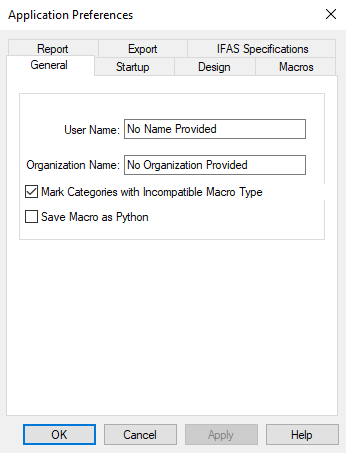
-
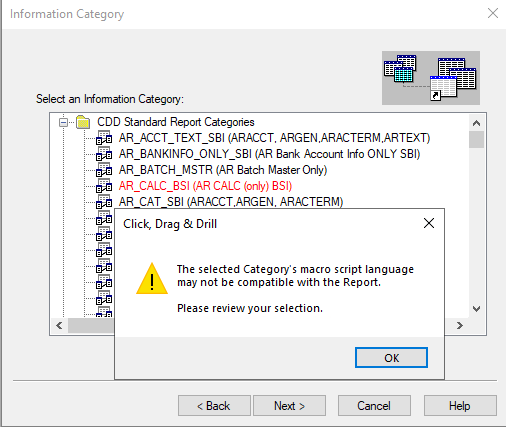
When Category Scanning is disabled (blocking alert on selection)
-
When Category Scanning is disabled, users can browse and select any category, but the system validates the choice at selection/save time.
-
If the selected category belongs to a different scripting type than the report (e.g., a VBScript category in a Python report), the system displays an upfront alert indicating that the category cannot be used because it is incompatible with the report’s scripting language.
-
The user must correct the selection before proceeding, which guarantees that a single report never mixes scripting languages.
-
-
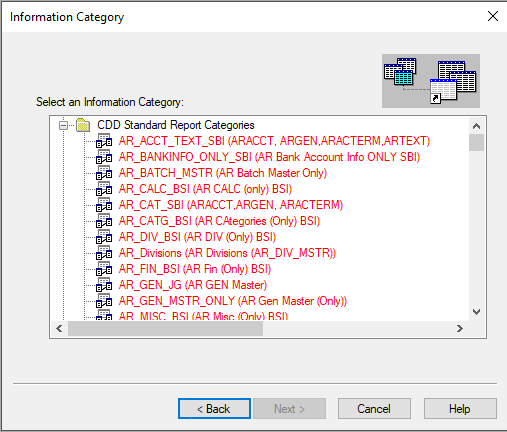
When Category Scanning is enabled (proactive warning)
-
When Preferences → Category Scanning is enabled and the user is creating or editing a Python-based report, all VBScript Information Categories are visually distinguished (for example, highlighted in red) as incompatible.
-
This applies to both:
-
New report creation (Information Category selection step), and
-
Existing Python reports (Report Properties → Information Category section).
-
-
This visual indication makes incompatible (VBScript) categories immediately obvious and helps users avoid mixing languages before saving any changes.
-
Performance Note
When Category Scanning is enabled, the system performs additional checks on categories to detect incompatible scripting types. As a result, you may notice some slowness when opening the category selection window. This behaviour is expected and is a direct trade-off for the proactive validation and safety that Category Scanning provides.
How to Convert VBScript Reports to Python Using Save As Feature
Overview
By default, when you use Save As on a VBScript-based Report / Information Category, a new copy of the report is created.
If you need to change this default behavior globally, you can do so from CDD Designer preferences:
-
Open CDD Designer.
-
Go to Edit → Preferences.
-
Locate the Save macros as Python option.
-
Change this setting as needed to control whether Save As creates Python or VBScript macros by default.
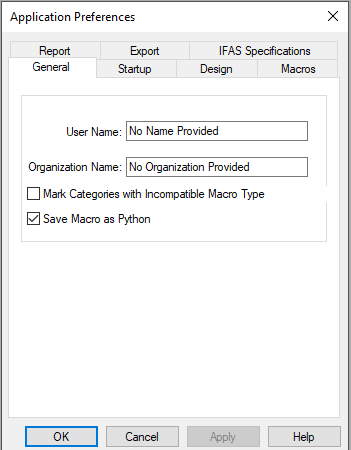
The Save As feature in CDD allows you to create a copy of an existing report or information category.
-
If the Save macro as Python checkbox is checked, it saves as Python;
-
If it is unchecked, it saves as VBScript.
This helps standardize new development on Python and supports the transition away from VBScript.
This section provides a step-by-step guide for converting existing VBScript-based reports to Python in CDD. The process ensures that all components—scriptlets, information categories, and the report itself—are properly migrated to Python, following the current platform restrictions and capabilities.
Step-by-Step Conversion Process
1. Open the VBScript Report
-
Start by opening the existing report that uses VBScript as its macro language.
2. Identify Scriptlets and Information Category
-
Review the report to determine:
-
Which scriptlets are referenced.
-
Which information category is used.
-
3. Migrate Scriptlets
-
Scriptlets do NOT have a Save As feature to convert to Python.
-
For each scriptlet used by the report:
-
Create a new scriptlet in Python manually.
-
Rewrite the logic from the original VBScript scriptlet in Python.
-
Save the new Python scriptlet.
-
Note: You must update your report to reference the new Python scriptlet. There is no automated conversion or Save As for scriptlets.
4. Convert the Information Category
-
Open the VBScript-based information category used by the report.
-
Use Save As to create a new information category (e.g., name it
categoryname_py). -
The new information category will have its Macro Type set to Python provided the Save Macro as Python checkbox in Preferences is checked.
-
Important: The Save As operation does not convert any existing VBScript code to Python. You must manually rewrite all macros in the new information category using Python.
5. Convert the Report
-
Open the original VBScript report.
-
Use Save As to create a new report (consider appending
_PYto the name). -
The new report will have its Macro Type set to Python provided the Save Macro as Python checkbox in Preferences is checked..
-
Important: The Save As operation does not convert any existing VBScript code to Python. You must manually rewrite all macros in the new report using Python.
6. Update Report Properties
-
Open the Report Properties of the new Python-based report.
-
Update the Information Category to reference the newly converted Python information category.
-
Update any scriptlet references to point to the new Python scriptlets you created.
7. Test the Converted Report
-
Run the new Python-based report.
-
Validate that all calculations, filters, and outputs match the original VBScript report.
-
Use debugging and trace statements as needed to troubleshoot and verify the migration.
Usage of Third Party Libraries
The application is designed to operate securely using only the components and dependencies provided as part of the product. Installing additional third-party Python packages whether from trusted or untrusted sources is discouraged, as it may introduce security risks such as vulnerable or malicious dependencies, stability issues, and unintended behaviour.
In unavoidable circumstances if additional packages are used, customers should ensure they are obtained from trusted sources, regularly reviewed for known vulnerabilities, and maintained appropriately. Access to install or modify packages should be restricted to authorized administrators only.
The product engineering team does not review, test, or support any package outside the one shipped as part of the standard product. Unsupported extensions may increase the application’s attack surface and impact system integrity. Customers are expected to operate the product within documented capabilities and default configurations. Issues arising from third-party package usage may fall outside standard product support.
Key Points & Limitations
-
No automatic code translation: All VBScript code in scriptlets, information categories, and reports must be manually rewritten in Python.
-
Scriptlets: Must be recreated manually in Python; Save As does not convert or clone scriptlet code across languages.
-
Information Categories & Reports: Save As creates a Python template, but you must manually migrate all macro logic.
-
References: After migration, ensure all references in the report point to the new Python-based components.
Best Practices / Key Points
-
Test on a non‑production environment first
It is strongly recommended to install and validate BP_26.3.0.0 in a test or sandbox environment before deploying it to production. This allows you to verify report behavior and identify any issues early. -
Organize Python reports separately
Create separate folders for Information Categories and Reports that contain only Python-based CDD reports. This helps clearly distinguish Python reports from existing VBScript reports and simplifies maintenance and troubleshooting. -
Validate converted Python reports
After converting existing VBScript reports to Python, ensure that:-
The reports execute successfully
-
The output matches expected results
-
Drill‑downs, parameters, and attachments (if applicable) work as intended
-
-
Retain VBScript reports as-is
Existing VBScript reports can continue to remain in their current folders and should not be modified unless conversion to Python is explicitly planned and tested.
FAQ
-
From what version of BusinessPlus does CDD support Python?
CDD supports Python as a macro language starting fromBP_26.3.0.0and later. -
Will my VBScript-based CDD report work after taking BP_26.3.0.0?
Yes. All existing VBScript-based CDD reports will continue to work after upgrading toBP_26.3.0.0 -
Are there any Sample Reports in Python we can refer ? With BP_26.3.0.0 release we will ship few sample reports that is available in Power Source https://support.powerschool.com/f/cdd_model_migration
-
What if i have questions on VBScript to Python Macros ? You can always reach out us on https://forms.office.com/pages/responsepage.aspx?id=qv1uquImqk6i2pFlS5-u2n0Rk3P_1FVNkYPzgp7gGKtUM1NTUFJCMkNZRVBTUlQyWFc5WEgxNVYwOC4u&route=shorturl . We will respond
-
Why introduction of
Report,BTActiveReportMacrosandBTActiveReportBudgets?
Python requires explicit namespaces
VBScript effectively exposed many helpers in a single global namespace, so a call like datefyb(...) or GetFQA(...) did not need any prefix.
Python organizes things into modules and objects. In CDD:
-
Report state and operations live on the
Reportobject. -
Shared macro helpers live on
BTActiveReportMacros. -
Budget helpers live on
BTActiveReportBudgets.
The prefix is therefore required to tell Python exactly where each function or property comes from.
-
Clear separation of responsibilities
The prefixes make it immediately clear what you’re using:
-
Report.→ report fields, system values, debug, cursors, scriptlets. -
BTActiveReportMacros.→ generic, reusable macro utilities. -
BTActiveReportBudgets.→ budget calculations and version handling.
This gives you a much cleaner separation than the “everything is global” style in VBScript.
-
-
Avoiding naming collisions
If you define your own helper in Python, it can safely sit next to the platform helpers because the platform helpers must be called through their object:
# Your own helper
def getamount(period):
    ...
# Built-in macro helper (clearly separated)
enc = BTActiveReportMacros.getamount(
    Report.SYSPERIOD,
    GLACT.EN01, GLACT.EN02, ..., GLACT.EN12
)
The prefix guarantees that calls to built-in functions cannot accidentally “pick up” your own definitions.
-
Consistent VBScript → Python conversion pattern
During migration, you can follow a simple mental rule:
-
VBScript global helpers (date functions, GL helpers, HR helpers, budget helpers)
→ become Python calls throughBTActiveReportMacros.orBTActiveReportBudgets. -
VBScript references to report/user fields and system values
→ become Python references withReport.
This gives you a clear and repeatable way to translate VBScript lines into Python, and keeps the Python code more understandable for future maintenance.
-