
Getting Started
To use the XLG Scriptlet you must have it installed.
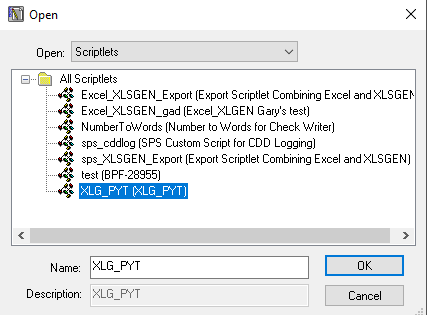
If the Scriptlet does not exist then copy the text from PowerSource and paste it into a new scriptlet and save with a name of XLG_PYT.
When the scriptlet is in place, you can then use it in a CDD report by placing the following code in the Python Macro area.
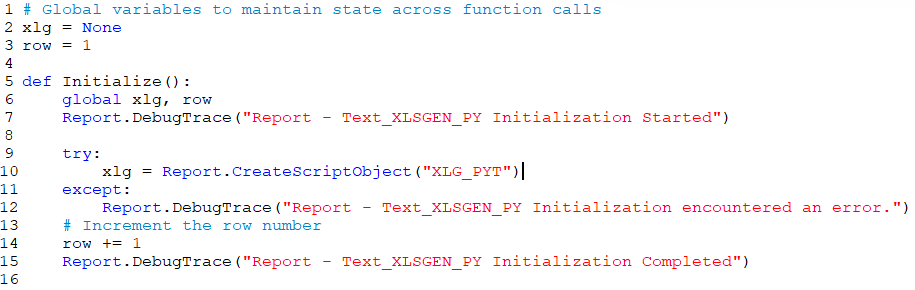
Then use the following function to start creating spreadsheets.
Primary
OPENFILE (Filename, Visible)
REQUIRED. You must use either “OPEN” or “OPENTEMPLATE” to start.
Will open Excel or use XLSGen if in 7i or ONESolution.
Filename: The name that the file will be saved as if running through Excel.
Visible: V - The sheet will be visible while running in Excel. Any other values are considered Invisible.
CDD Macro:
XLG.OPENFILE(Report.REPORTID, "V")
OPENTEMPLATE (Filename, Visible, Template)
You must use either “OPEN” or “OPENTEMPLATE” to start.
Will open an existing spreadsheet to use as a template.
Filename: The name that the file will be saved as if running through Excel.
Visible: V - The sheet will be visible while running in Excel. Any other values are considered Invisible.
Template: The path and filename of the excel template file to use.
CDD Macro:
XLG.OPENTEMPLATE(Report.REPORTID, "V", "C:\\xlsgen\\Template\\Template.xlsx")
NEWSHEET (Sheetname, Orientation)
REQUIRED. Unless you use “OPENTEMPLATE” and an existing sheet.
Creates a new worksheet in the workbook.
SheetName: The name of the Tab on the spreadsheet
Orientation: P – Portrait, L – Landscape
CDD Macro:
XLG.NEWSHEET("BudAct", "P")
Result:

HEADER (Row, Col, Value, Size, Format)
Writes data to a cell. Cells are center aligned, pale blue background, bold, and have a border.
|
Row: |
The Row of the cell in the spreadsheet to write Data |
|
Col: |
The Column of the cell in the spreadsheet to write the data |
|
Value: |
The Data to be placed in the cell |
|
Size: |
Column width |
|
Format: |
N Numeric Cell C Currency Cell R Rounded Numeric Cell L Label Cell (Text) |
|
|
** See Special Formatting |
CDD Macro:
XLG.HEADER(Row, 2, "Object", 30, "L")
XLG.HEADER(Row, 3, "Key", 10, "L")
Result:

DETAIL (Row, Col, Value, Format)
Writes data to a cell
|
Row: |
The Row of the cell in the spreadsheet to write Data |
|
Col: |
The Column of the cell in the spreadsheet to write the data |
|
Value: |
The Data to be placed in the cell |
|
Format: |
N Numeric Cell C Currency Cell R Rounded Numeric Cell L Label Cell (Text) FN Formula Numeric Cell “=Sum(A1:A5)” FC Formula Currency Cell “=Sum(A1:A5)” FR Formula Rounded Cell = 0 instead of 0.00 ** ** See Special Formatting |
CDD Macro:
XLG.DETAIL(Row, 01, BLBA_BUDACT_MSTR.GLBA_OBJ, "L")

XLG.DETAIL(Row, 01, BLBA_BUDACT_MSTR.GLBA_OBJ, "L")

Row = Row + 1
Result:

FOOTER (Row, Col, Value, Format, Linestyle)
Writes data to a cell. Cell will be formatted Bold
|
Row: |
The Row of the cell in the spreadsheet to write Data |
|
Col: |
The Column of the cell in the spreadsheet to write the data |
|
Value: |
The Data to be placed in the cell |
|
Format: |
N Numeric Cell C Currency Cell R Rounded Numeric Cell L Label Cell (Text) FN Formula Numeric Cell “=Sum(A1:A5)” FC Formula Currency Cell “=Sum(A1:A5)” FR Formula Rounded Cell = 0 instead of 0.00 ** ** See Special Formatting
|
|
Linestyle: |
Print lines above/below the cell for totals |
|
|
SA Single Above SB Single Below DA Double Above DB Double Below SASB Single Above and Single Below SADB Single Above and Double Below |
CDD Macro:
XLG.Footer(Row, 01, f"Total {GLBM_BUDACT_MSTR.GLB_AUGT}", "L", “NONE“)
Result:

CLOSE (Visible, Save)
REQUIRED
Closes sheet
Visible: V - Will make the sheet Visible if previously Invisible. Any other values are Ignored. Save: Save: S - To Save the File. Any other values are Ignored.
CDD Macro:
XLG.CLOSE(“V“, “D“)
Result:
Spreadsheet made Visible but did not save it. The End user will have to save it manually in Excel.
Formatting
AUTOFILTER (Range)
Applies an Auto Filter to a Range of cells
Range: The Range of cells to apply the filter. Must be in “A1:B5” format or “A1:A1” for a single cell
CDD Macro:
XLG.AUTOFILTER("A1:F1")
Result:

BORDER (Range, BorderEdge, Linestyle, Color)
Puts a border around a cell or range of cells
|
Range: |
The Range of cells to apply a border. Must be in “A1:B5” format or “A1:A1” for a single cell |
|
Border Edge: |
Turns on borders, combine values for more than one edge. I.e. 1+2+4+8 or 15 would be a box. |
|
|
4 Top 8 Bottom 16 Inside Vertical 32 Inside Horizontal
|
|
Linestyle: |
Enter the numeric value for the linestyle desired |
|
|
|
|
Color |
Sets the border color. Uses all 40 colors available by name (Pale Blue) in Excel. Refer to the “Fill color” Button in Excel. |
CDD Macro:
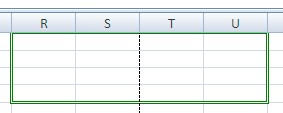
XLG.BORDER(“R1:U4”,15,6, “GREEN“)
Result:
CHANGECOLOR (Row, Col, CellColor, TextColor)
Changes a cells background color and text color.
Row: The Row of the cell in the spreadsheet to write Data
Col: The Column of the cell in the spreadsheet to write the data
CellColor: Uses all 40 colors available by name (Pale Blue) in Excel. Refer to the “Fill color” Button in Excel.
TextColor: Uses all 40 colors available by name (Pale Blue) in Excel. Refer to the “Fill color” Button in Excel.
CDD Macro:
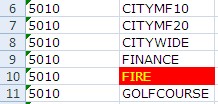
if GLBA_BUDACT_MSTR.GLBA_KEY == "FIRE":
    XLG.CHANGECOLOR(Row, 2, "RED", "YELLOW")
Result:
CHANGEFONT (FontName, FontSize)
Changes the Font name and size.
FontName: Specify by font name “Arial”. A value of “DEFAULT” will set the font back to its original value.
FontSize: Specify by font name 12. A value of “DEFAULT” will set the font back to its original size.
CDD Macro:
XLG.CHANGEFONT("Monotype Corsiva", 22)
XLG.DETAIL(30, 4, "DATA 1", "L")
XLG.CHANGEFONT("DEFAULT", "DEFAULT")
XLG.DETAIL(31, 4, "DATA 2", "L")
Result:

CHANGEFORMAT (DataType, Mask)
Changes mask for predefined formats.
DataType: Must be either “L, N, C, R”
Mask: New Mask to represent that Type of Data a value of “DEFAULT” will return to our standard format
CDD Macro:
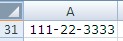
XLG.CHANGEFORMAT("N", "000-00-0000")
XLG.DETAIL(31, None, "111223333", "N")
XLG.CHANGEFORMAT("N", "DEFAULT")
Result:
COLUMNWIDTH (Column, Size)
Specifies the width of a column or range of columns.
Column: Enter Column “A” or “A:F” for columns A – F.
Size: Sets the width of the column.
CDD Macro:
XLG.COLUMNWIDTH("R:T", 22)
Result:

FITRANGE (Range)
Auto fits a Range of Cells.
Range: Enter Columns to be auto fit “A1:A25” or “A1:F1000” for columns A – F.
CDD Macro:
XLG.FITRANGE("A1:A100")
Result:
Autofits Column A using the max width it finds up to row 100
FITSHEET
Auto fits the sheet.
CDD Macro:
XLG.FITSHEET()
FONTSET (FontName, FontSize) *When you use this, it must be called before NEWSHEET.
Sets the font in the worksheet.
FontName: Default is “Arial”
FontSize: Default is 10
CDD Macro:
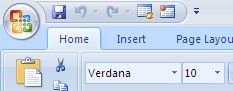
XLG.FONTSET("Verdana",10)
Result:
FREEZEFRAME (Row, Column)
Freezes Rows and/or Columns on the sheet
Row: Number of Rows on the TOP of the sheet to freeze.
Column: Number of Columns on the LEFT of the sheet to freeze.
CDD Macro:
XLG.FREEZEFRAME(1,0)
Result:

Row 1 is frozen when you scroll through the cells.
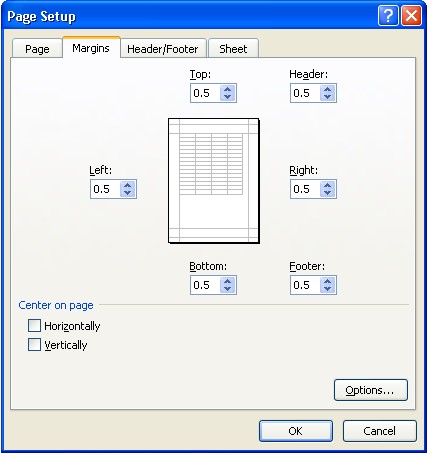
MARGINS (Left, Right, Top, Bottom, Header, Footer) *When you use this, it must be called before NEWSHEET.
Sets the margins in the worksheet.
|
Left: |
Width in Inches Default is .75” |
|
Right: |
Width in Inches Default is .75” |
|
Top: |
Width in Inches Default is 1” |
|
Bottom: |
Width in Inches Default is 1” |
|
Header: |
Width in Inches Default is .5” |
|
Footer: |
Width in Inches Default is .5” |
CDD Macro:
XLG.MARGINS(.5,.5,.5,.5,.5,.5)
Result:
MERGECELLS (Range)
Merges a range of cells.
Range: The Range of cells to be merged. Must be in A1:B5 format
Data must exist in First Cell of the range and the merged cells will follow the same format.
CDD Macro:
XLG.CHANGECOLOR(30, 1, "Indigo", "Pale Blue")
XLG.DETAIL(30, 1, "CDD Report Sample", 64 + 1 + 16384 + 2048)
XLG.MERGECELLS(“A30:F31")
Result:

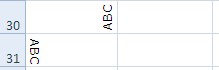
ORIENTANGLE (Angle)
Changes the angle of text in a cell.
Angle: Enter a value between -90 and 90.
CDD Macro:
XLG.ORIENTANGLE(90)
XLG.DETAIL(30, 1, "ARC", 64 + 131072)
XLG.ORIENTANGLE(-90)
XLG.DETAIL(31, 1, "ABC", 64 + 131072)
Result:
PAGEBREAK (Direction, BeforeCell)
Inserts a Horizontal or Vertical page break prior to the value entered.
Direction: Enter “H” for Horizontal page break or “V” for Vertical page break.
BeforeCell: Specifies where the break is placed. For example:
If you use “H” and 15 it will put a horizontal page break between rows 14 and 15. If you use “V” and 15 it will put a vertical break between columns N and O.
CDD Macro:
XLG.PAGEBREAK(“H”, 21)
Result:
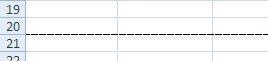
A horizontal page break has been added prior to line 21.
PRINTFIT (Wide, Tall)
Changes the page setup to adjust to fit to a page..
Wide: Enter the number of pages wide to fit.
Tall: Enter the number of pages tall (Zero will allow infinite pages)
CDD Macro:
XLG.PRINTFIT(1, 0)
Result:
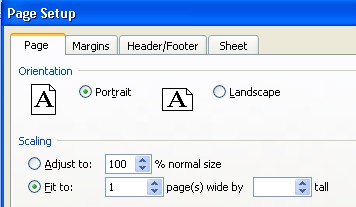
Page will be forced to fit on 1 page wide and can run infinite pages tall.
REPEATCELLS (Direction, Range)
Sets repeating Rows or Columns.
Direction: Enter “R” for Row or “C” for Column
Range: Sets the Range that will repeat on every page of the output.
CDD Macro:
XLG.REPEATCELLS(“R“, “1:1“)
Result:

Row 1 will be repeated on every printed page. (Shows on print preview)
ROWHEIGHT (Row, Height)
Sets the row height.
Row: Enter the Row number “1” or “1:5” for a range or rows 1 – 5.
Height: Numeric value for the height of the row..
CDD Macro:
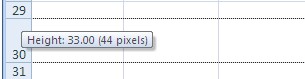
XLG.ROWHEIGHT(30,33)
Result:
SHEETFOOTER (Left, Center, Right)
Sets values in the Page Footer for the Sheet.
Left: Value that will appear in the Left section of the Footer. (Left Justified)
Center: Value that will appear in the Center section of the Footer. (Center Justified)
Right: Value that will appear in the Right section of the Footer. (Right Justified)
CDD Macro:
XLG.SHEETFOOTER(“Way Left“, “Here in Center“, “Way Right“)
Result:

Visible when you do a Print Preview or actually print the page
SHEETHEADER (Left, Center, Right)
Sets values in the Page Header for the Sheet.
Left: Value that will appear in the Left section of the Footer. (Left Justified)
Center: Value that will appear in the Center section of the Footer. (Center Justified)
Right: Value that will appear in the Right section of the Footer. (Right Justified)
CDD Macro:
XLG.SHEETHEADER(““, “Budget to Actual“, ““)
Result:

Visible when you do a Print Preview or actually print the page
CHANGESHEET (SheetName)
Changes to a different Sheet in the workbook.
SheetName: The name of the sheet to switch to.
CDD Macro:
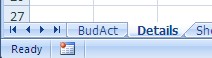
XLG.CHANGESHEET(“Details“)
Result:
COMMENT (Row, Col, Comment)
Sets a Comment for a Cell
Row: The Row of the Cell to have a Comment.
Col: The Column of the Cell to have a Comment.
Comment: The text you want to be used as the comment when you hover over a cell
CDD Macro:
XLG.COMMENT(30,1,“Just a simple line of text“)
Result:

DELETESHEET (SheetName)
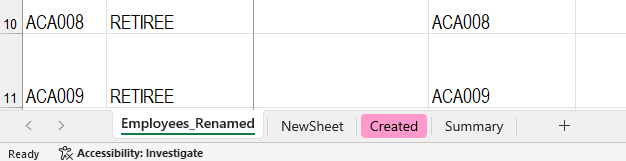
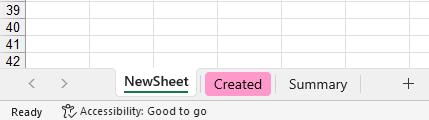
Deletes an existing Sheet in the workbook.
SheetName: The name of the sheet to delete.
CDD Macro:
XLG.DELETESHEET(“Employees_Renamed“)
Result:
Before
After
HYPERLINK_LINKSHEET (Row, Col, Link, Tip)
Sets up a link that you can click on to navigate to other cells.
|
Row: |
The Row that you want to place a Link |
|
Col: |
The Column that you want to place a link. |
|
Link: |
The Cell in which you are linking to. |
|
Tip: |
The words that appear in the pop up bubble when you hover over the link. |
CDD Macro:
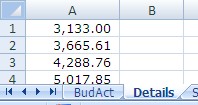
XLG.HYPERLINK_LINKSHEET(30, 1, "=Details!A2", "Click here To go")
XLG.HYPERLINK_LINKSHEET(31, 1, "=Details!A2", "See the Value?")
XLG.DETAIL(30, 1, "Click", "L")
XLG.DETAIL(31, 1, "=Details!A2", "FN")
Result:
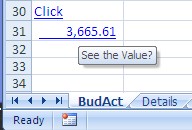
Cell A31 is displaying the value from the Cell A2 on the Details Sheet.
RANGENAME (Name,Cells)
Add a RangeName to a cell or block of cells for formulas
Name: The name must follow Excel guidelines.
Cells: Use A1,A1:Z26 or R1C1:R26C26 format
CDD Macro:
XLG.DETAIL(Row * 1, TblCol1, 2080, "N")
XLG.RANGENAME("ClassDtlHrs", f"{XLG.XLGNMUTOCOL(TblCol1)}{xlRow}")
XLG.DETAIL(xlRow, TblCol2, "Class Dlt Hrs", "L")
Result:
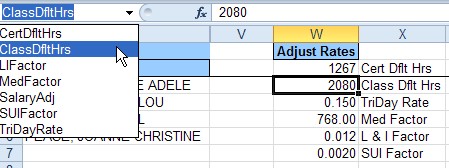
Sample Formula which uses Range Names:

RENAMESHEET (OrigSheet, NewSheet)
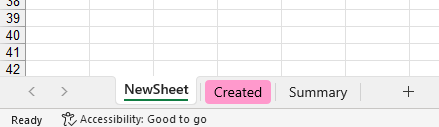
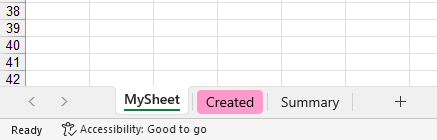
Renames an existing Sheet in the workbook.
OrigSheet: The existing tab name.
NewSheet: The new tab name..
CDD Macro:
XLG.RENAMESHEET("NewSheet", "MySheet")
Result:
Before
After
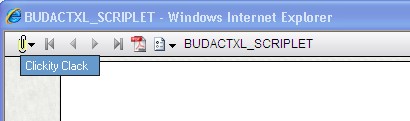
SETATTACHMSG (Message)
Sets the value in the 7i bubble for attachments.
Message: Default is “Excel Output”.
CDD Macro:
XLG.SETATTACHMSG (“Clickity Clack“)
Result:
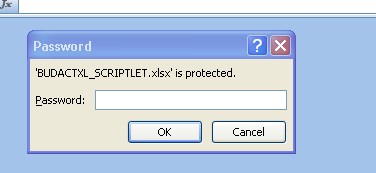
SHEETPASSWORD (Pass)
Sets the Password for the Spreadsheet.
Pass: The password to be used to protect the spreadsheet.
CDD Macro:
XLG.SHEETPASSWORD("M0n3y")
Result:
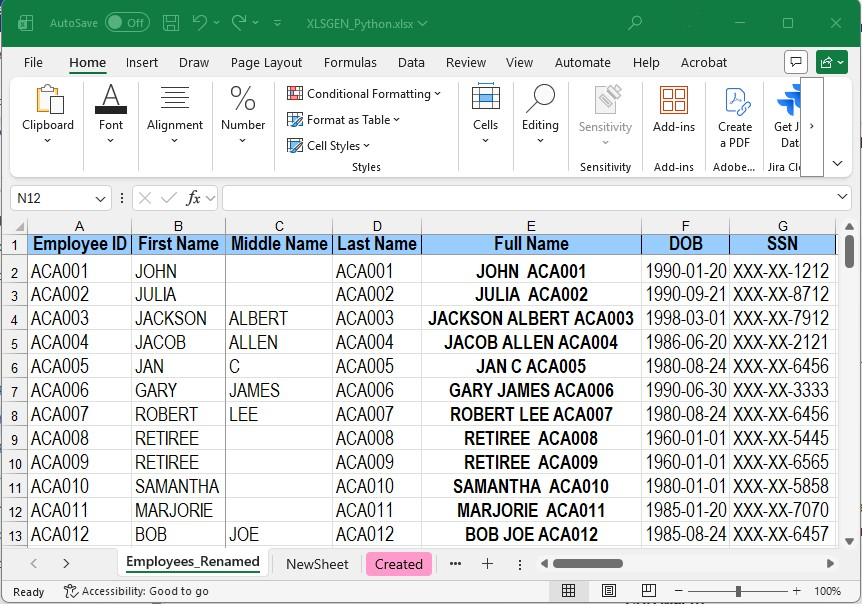
SSNMASK (Value, Length, Char, Delim)
Displays a SSN using a mask to hide digits.
Value: A Social Security Number
Length: The number of digits on the right side to display. (all others will be replaced with the specified Char)
Char: Character to use to cover the hidden digits of the SSN.
Delim: The delimiter to use to separate the string into 3-2-4 format.
CDD Macro:
XLG.DETAIL(ROW, XLG.XLGCOL(1), XLG.SSNMASK(HR_EMPMSTR.SSN, 4, "X", "-"), "L")
Result:
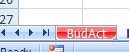
TABCOLOR (Value)
Changes the color of a Tab.
Value: Sets the color for a Tab. Uses all 40 colors available by name (Pale Blue) in Excel. Refer to the “Fill color” Button in Excel.
CDD Macro:
XLG.TABCOLOR("Red")
Result:
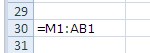
XLGNUMTOCOL (Value)
Converts a Number into a Letter.
Value: Enter a numeric value to be converted into a column letter (1 = A, 15 = O, 29 = AC.)
CDD Macro:
XLG.DETAIL(30, 1, f"={XLG.XLGNUMTOCOL(13)}1:{XLG.XLGNUMTOCOL(28)}1", "L")
Result:
XLGCOL (Value)
Automatically increments the column
Value: Enter a numeric value to increment the column (0 resets the column number)
You can also jump columns by a value other than 1.
A value of 2 will jump 2 columns so if you are in column “B”, a value of 2 will jump to “D”
CDD Macro:
XLG.XLGCOL(0)
XLG.HEADER(Row, XLG.XLGCOL(1), "Object", 30, "L")
XLG.HEADER(Row, XLG.XLGCOL(1), "Key", 10, "L")
XLG.HEADER(Row, XLG.XLGCOL(2), "Budget", 10, "N")
XLG.HEADER(Row, XLG.XLGCOL(1), "Actual", 14, "N")
Result:

XLGROW (Value)
Automatically increments the row number.
Value: Enter a numeric value to increment the row (0 resets the row number)
CDD Macro:
Row = XLG.XLGROW(0)
Row = XLG.XLGROW(1)
XLG.HEADER(Row, XLG.XLGCOL(1), "Object", 30, "L")
XLG.HEADER(Row, XLG.XLGCOL(1), "Key", 10, "L")
XLG.HEADER(Row, XLG.XLGCOL(1), "Budget", 10, "N")
XLG.HEADER(Row, XLG.XLGCOL(1), "Actual", 14, "N")
XLG.HEADER(Row, XLG.XLGCOL(1), "Encumbrance", 12, "N")
XLG.HEADER(Row, XLG.XLGCOL(1), "Total", 60, "N")
Row = XLG.XLGROW(1)
Result:

EXPORTMSG
You can also create a user defined field in CDD to display Export information.
Create a User Defined Field called “EXPORTMSG”. It should be character with a size of 200, center align. Place the field in the page header and again in the end of report region.
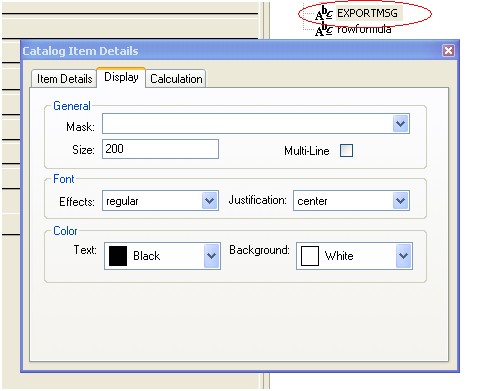


In CDD the field will display like this:

In 7i the Field will display like this:

Summary Tab
BUILD_SEL (Value)
Sets the column heading for the Elements to report.
Value: Enter column headings separated with a comma.
CDD Macro:
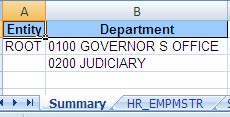
XLG.BUILD_SEL("Entity, Department")
WRITE_SEL (Element, Value)
Stores unique values for each element defined with BUILD_SEL.
Element: An element name that was created using the BUILD_SEL function
Value: The value you want to store and report later.
CDD Macro:
XLG.WRITE_SEL("Entity", HR_EMPMSTR.ENTITY_ID)
XLG.WRITE_SEL("Department", HR_EMPMSTR.DEPT)
PRINT_SEL (Sheet)
Creates a new sheet to display the stored elements and values.
Sheet: The name of the worksheet to show the results
CDD Macro:
XLG.PRINT_SEL("Summary“)
Result:
Special Formatting
To enable further control of the formatting of Headers, Details, and Footers, the following options are now available:
|
1 |
Bold |
|
2 |
Italic |
|
4 |
Underline |
|
8 |
Numeric |
|
16 |
Currency |
|
32 |
Rounded |
|
64 |
Text or Label |
|
128 |
Formula Numeric |
|
256 |
Formula Currency |
|
512 |
Formula Rounded |
|
1024 |
Horizontal Alignment Left |
|
2048 |
Horizontal Alignment Center |
|
4096 |
Horizontal Alignment Right |
|
8192 |
Vertical Alignment Top |
|
16384 |
Vertical Alignment Middle |
|
32768 |
Vertical Alignment Bottom |
|
65536 |
Wrap Text in Cell |
|
131072 |
Orientation |
These can be used in conjunction with each other.
For example to format as Bold, Currency and Horizontal Alignment Centered you could use (1 + 16 + 2048)
CDD Macro:
XLG.DETAIL(row, 15, Report.TotAmt, (1 + 16 + 2048))
More Sample Macro
Sample XLG Macros are available in PowerSource, XLSGEN_Python.czf